Flutter Slivers: How Scrolling Works


This article covers how scrolling works, the differences between various scroll widgets, techniques for building efficient layouts with slivers, and common mistakes to avoid when working with lists.
Table of Contents
- Box and Sliver Protocols
- How Scroll Works
- When to use Slivers
- Structuring Sliver Widgets
- Common Mistakes
Box and Sliver Protocols
Flutter uses widgets to create elements, which in turn create render objects. Render objects are the core classes responsible for layout and painting on the screen.

However, not every widget directly corresponds to a render object. Stateless and Stateful widgets serve as wrappers—they delegate layout and painting responsibilities to their child widgets.
Box Protocol
The box protocol is the most commonly used layout model in Flutter. When you create a column, a row, a decorated box, or an image, you are using box protocol. Box widgets use 2D Cartesian coordinate system (x and y, see Offset).
Box-based widgets use BoxConstraints, which define minimum and maximum width and height values. The layout process follows a simple rule:
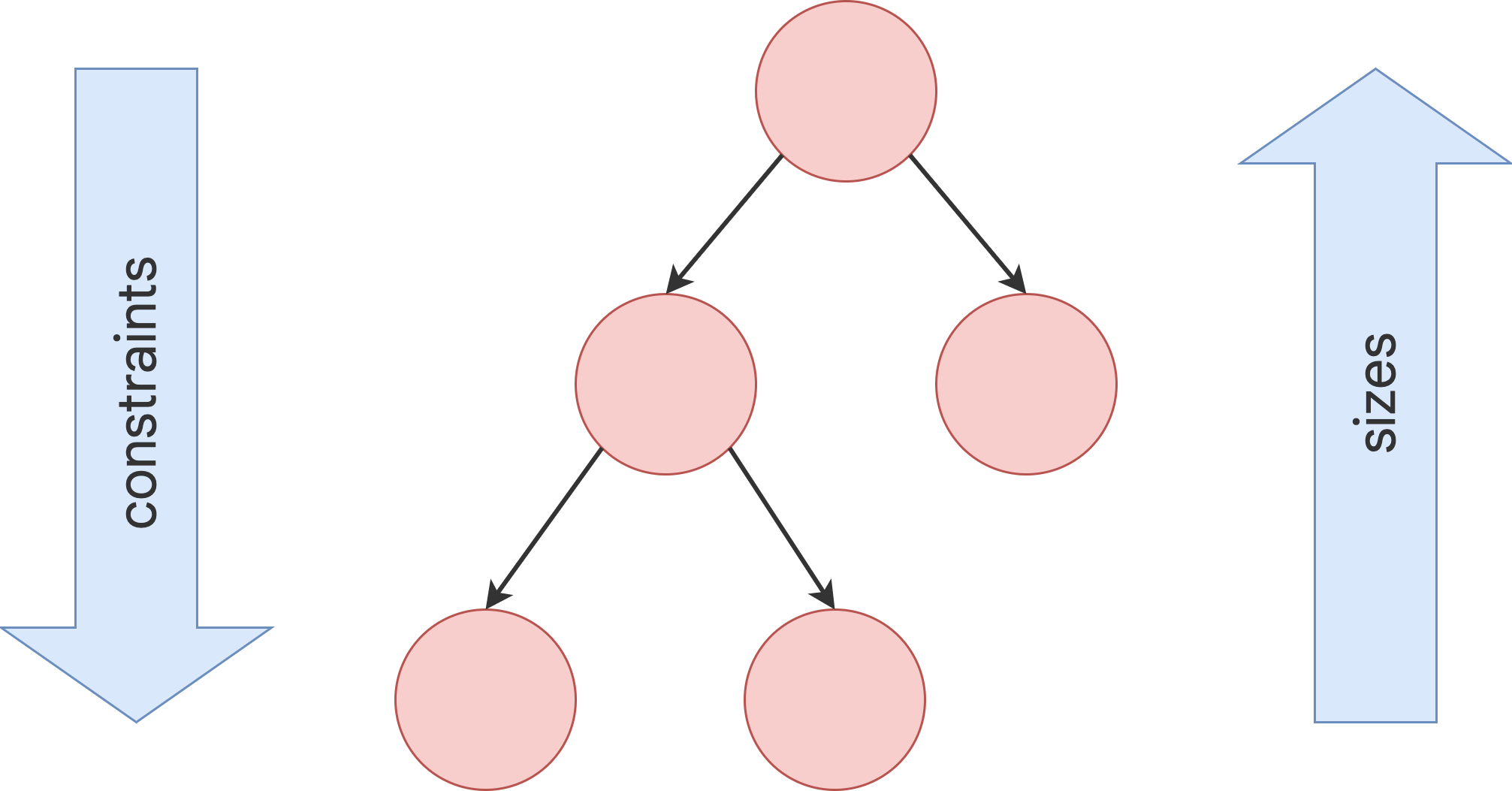
Constraints go down, sizes go up, and the parent sets the child's position.

Imagine a widget tree Scaffold > Center > SizedBox > ColoredBox. During the layout phase, constraints flow from parent to child, and each widget determines its size. Here’s how the layout works for this widget tree, simplified:
Scaffoldreceives viewport constraints (400x800)- These constraints flow down to the
Center SizedBoxreturns its size (200x200)CenterpositionsSizedBoxat x:100, y:300
For more information about BoxConstraints, see Understanding constraints.
Sliver Protocol
Unlike the box protocol, the sliver protocol is designed specifically for scrolling layouts.
Slivers use SliverConstraints that describe the current scroll state of the viewport from the point of view of the sliver receiving the constraints. From constraints, a sliver may get the size of a viewport, current scroll offset, remaining paint extent and more.
Rather than simply defining size (width and height), a sliver specifies a geometry containing detailed information about the space it occupies. This allows the sliver to determine precisely how much of itself is visible, whether it is currently within the viewport, and even control its own positioning.
Slivers are designed for efficient rendering—they process and display scrollable items only when needed, rather than laying out or painting all items at once.
Scroll views like ListView and GridView are simple wrappers around slivers. However, if you want to work with slivers directly, use the CustomScrollView widget. For example, to create a scrolling list similar to ListView, you can use SliverList, which accepts box widgets:
CustomScrollView(
  slivers: [
    SliverList.list(children: [Text('First Item'), Text('Second Item')]),
  ],
);

// Is similar to
ListView(
  children: [
    Text('First Item'),
    Text('Second Item'),
  ],
);
For more information about constraints and geometry, see SliverConstraints and SliverGeometry.
Key Difference
Slivers receive constraints that include scroll state information, such as the preceding paint offset and viewport size. After layout, each sliver defines its geometry, which describes its position and size within the viewport.
The viewport uses sliver geometry to determine each sliver's placement, allowing slivers to control their position and create scrolling effects like sticky headers or a pinned AppBar.
How Scroll Works
Scrolling in Flutter is a comprehensive mechanism designed around a set of core components, each with clear responsibilities.
Viewport
Viewport is a widget that creates a scrollable area and renders slivers. Scroll views (ListView, GridView, CustomScrollView) use Viewport internally.
Viewport has two common implementations:
- Standard Viewport – By default, all scroll views use this implementation. It fills the available space. For example, if you use it as the body of a
Scaffold, it will occupy the entire screen. However, if you place it inside aColumnwithout providing fixed size, it will throw an error: "Viewport was given unbounded height (or width)." - Shrink-Wrapping Viewport – Used when
shrinkWrapis set totruein a scroll view. This implementation calculates the main axis extent of the scroll view dynamically, so it does not require bounded constraints. As a result, you can use it without specifying a size. However, shrink-wrapping is an expensive operation and may lead to performance issues. In practice, it is not needed and should be always avoided.
Here is how to use Viewport to render slivers:
Viewport(
  offset: ViewportOffset.zero(),
  slivers: [
    SliverList.builder(
      itemBuilder: (context, index) {
        return Container(height: 100, color: index.isEven ? Colors.red : Colors.blue);
      },
    ),
  ],
)
The Viewport receives an offset parameter controlled by ViewportOffset, a listenable object that broadcasts position changes. This offset determines scrolled pixels within the viewport.
Importantly, Viewport itself does not implement scrolling behavior—this functionality is delegated to the Scrollable component. When ViewportOffset.zero is specified, the viewport remains in a fixed position with no scrolling capability.
Scrollable
The Scrollable component manages viewport scrolling by intercepting user gestures (drags, swipes) and converting them into scroll motion vectors that dynamically update the viewport's offset position.
Scrollable(
  controller: scrollController, // ScrollController()
  physics: const BouncingScrollPhysics(),
  viewportBuilder: (context, position) {
    return Viewport(
      offset: position,
      slivers: <Widget>[
        SliverList.list(children: [Text('Item 1'), Text('Item 2')]),
      ],
    );
  },
);
Scrollable works with ScrollController and ScrollPosition:
- ScrollController: Holds a ScrollPosition instance and offers a high-level API for managing scrolling. You can monitor the current scroll offset or adjust it using methods like animateTo and jumpTo.
- ScrollPosition: Implements the ViewportOffset interface and updates the scroll offset in response to user interactions.
Scrollable accepts a viewportBuilder function that returns a viewport. This function takes a position argument—a ScrollPosition—which should be passed to a Viewport.
SingleChildScrollView
SingleChildScrollView is a unique widget that makes its child scrollable. Unlike other scrollable widgets, it uses a custom viewport that does not rely on slivers. It is designed specifically for enabling scroll on a single widget, typically a Column, Row, or Wrap.
However, SingleChildScrollView is not designed for large scrollable content because it lays out and paints the entire child widget at once. Instead, it is meant to keep a specific widget accessible when there isn’t enough space to display it.
For scrolling large lists of items, use ListView or CustomScrollView with slivers instead.
When to use Slivers
Why use slivers when APIs like ListView or GridView are simpler to work with? While those widgets handle most common scenarios, there are times when you need more control and flexibility—exactly what slivers offer.
Multiple Layout Models
Imagine a screen with multiple scrollable lists—one for ads, another for news, and potentially more for other content types:
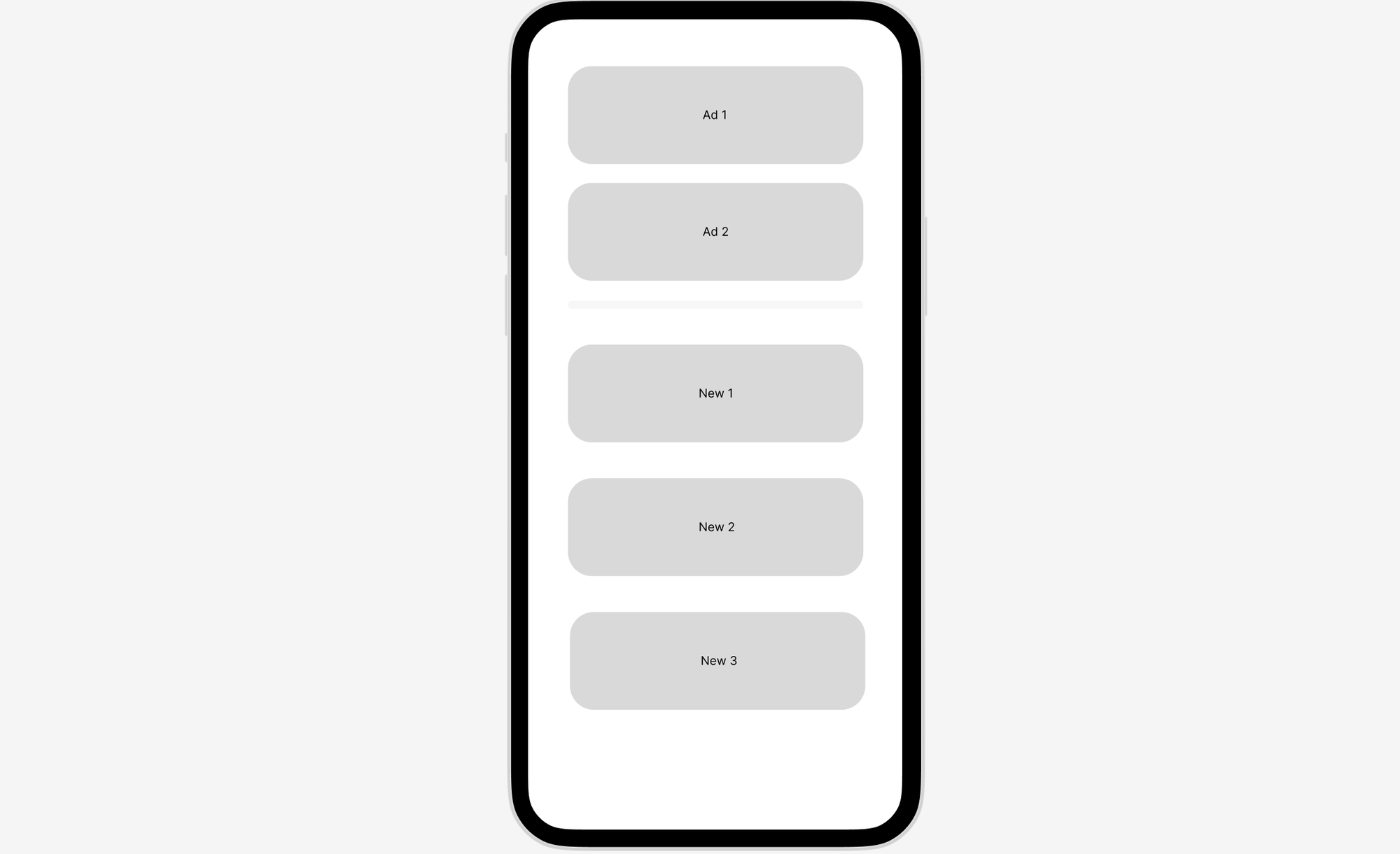
In the screenshot, there's a list of ads followed by a divider and then a list of news. Using ListView, you might implement it like this:
ListView(
  children: [
    // ListView for Ads
    ListView.builder(AdItem()),
    Divider(),
    // ListView for News
    ListView.builder(NewItem()),
  ],
);
Before analyzing it, let's take a look at widgets it creates:
Scrollable (root list view)
  Viewport
    Scrollable (ads list)
      Viewport
    Divider
    Scrollable (news list)
      Viewport
This solution creates three viewports and three scrollable areas along the vertical axis*, which seems incorrect. Additionally, it throws the error: "viewport was given unbounded height" for both the ads and news lists. This issue occurs because the viewport requires a fixed height, as we discussed earlier.
If you search for "viewport was given unbounded height", you might come across solutions suggesting shrinkWrap. However, using shrinkWrap forces the list to calculate the size of all items at once, leading to an inefficient layout.
The main issue is that ListView and GridView support only a single layout model. In a ListView, items can only be arranged in a linear list, while in a GridView, they can only be arranged in a grid. These widgets do not support combining multiple layout models (e.g. list view + list view or list view + grid view).
This is where slivers come in. You can use CustomScrollView to create two simple sliver lists like this:
CustomScrollView(
  slivers: [
    SliverList.builder(AdItem()),
    SliverToBoxAdapter(child: Divider()),
    SliverList.builder(NewItem()),
  ],
);

// Which translates to:
Scrollable
  Viewport
    SliverList1
    SliveAdapter
    SliverList2
Now, the situation is entirely different. There is a single scrollable area and a single viewport, allowing the lists to be rendered lazily for optimal performance.
Remember the key difference—ListView and GridView internally use the same slivers, but they are restricted to a single layout model. See:
ListView.builder(AdItem())

// Is the same as
CustomScrollView(
  slivers: [
    SliverList.builder(AdItem()),
  ],
);

----

GridView.builder(AdItem())

// Is the same as
CustomScrollView(
  slivers: [
    SliverGrid.builder(AdItem()),
  ],
);
For more information about slivers, see Using slivers to achieve fancy scrolling.
Custom Scroll Effects
Slivers are also useful when implementing custom scroll effects, such as an expanding or pinned app bar, sticky headers, and more.
Structuring Sliver Widgets
Flutter provides many built-in slivers. For example, SliverList creates a lazily evaluated linear list, while SliverGrid does the same for a grid. Additionally, SliverToBoxAdapter allows you to convert a box widget into a sliver.
When building large sliver layouts with multiple sections, it's often best to create separate widgets. This keeps your CustomScrollView concise and makes the code more manageable by organizing the UI into smaller, reusable components.
If you create a separate widget, you might wonder whether it should return a sliver. If the widget contains a sliver-based list, such as SliverList or SliverGrid, you should return it as is.
Additionally, if you need to return a list along with other slivers, you can use SliverMainAxisGroup or SliverCrossAxisGroup, like this:
class MyNewsSectionSliver extends StatelessWidget {
  const MyNewsSectionSliver({super.key});

  @override
  Widget build(BuildContext context) {
    return SliverMainAxisGroup(
      slivers: [
        SliverToBoxAdapter(child: Text('News Section')),
        SliverList.builder(
          itemBuilder: (context, index) {
            return ListTile(title: Text('News Item $index'));
          },
        ),
      ],
    );
  }
}
However, if a widget returns a simple, not large box widget like Column, Row, Wrap, or Image, there's no need to return a sliver:
class SimpleSection extends StatelessWidget {
  const SimpleSection({super.key});

  @override
  Widget build(BuildContext context) {
    return Column(
      children: [
        Text('Simple Section'),
        Image.asset('assets/image.jpg'),
        Divider(),
      ],
    );
  }
}

// then use it like this:
CustomScrollView(
  slivers: [
    SliverToBoxAdapter(child: SimpleSection())
  ],
);
If a Column contains a large amount of content, consider using SliverList instead for efficient lazy rendering.
It's a good practice to add a "Sliver" prefix or suffix to your widget name to align with Flutter SDK conventions.
Common Mistakes
Understanding the problem is the first step to solving it. This section covers common mistakes with scrollable widgets.
Using shrinkWrap or NeverScrollableScrollPhysics
ShrinkWrap and/or NeverScrollableScrollPhysics in a scroll view is a marker of inefficient layout. As mentioned earlier, shrinkWrap forces the scroll view to lay out all items at once instead of doing so lazily, which can be resource-intensive. Instead, use slivers for better performance.
// BAD
SingleChildScrollView(
  child: Column(
    children: [
      ListView.builder(
        shrinkWrap: true,
        physics: const NeverScrollableScrollPhysics(),
        itemBuilder: ...
      ),
      ListView.builder(
        shrinkWrap: true,
        physics: const NeverScrollableScrollPhysics(),
        itemBuilder: ...
      ),
    ],
  ),
);

// BAD
ListView(
  children: [
    ListView.builder(
      shrinkWrap: true,
      physics: const NeverScrollableScrollPhysics(),
      itemBuilder: ...
    ),
    ListView.builder(
      shrinkWrap: true,
      physics: const NeverScrollableScrollPhysics(),
      itemBuilder: ...
    ),
  ]
);

// GOOD
CustomScrollView(
  slivers: [
    SliverList.builder(...)
    SliverList.builder(...),
  ],
);
Using SingleChildScrollView for Large Contents
SingleChildScrollView is intended for situations where content that normally fits within the view needs to remain accessible when it doesn’t. It should not be used for long lists or large content, because it needs to layout and paint entire widget at once.
// BAD
SingleChildScrollView(
  child: Column(
    children: [
      Text('Item 1'),
      Text('Item 2'),
      Section(),
      Image(),
      Description(),
    ],
  ),
);

// GOOD:
ListView(
  children: [
    Text('Item 1'),
    Text('Item 2'),
    Section(),
    Image(),
    Description(),
  ],
);
Creating Unbounded Viewports
Viewports require bounded constraints to determine which part of the scrollable area should be rendered. Always provide fixed sizes for viewports to ensure proper rendering.
// BAD:
ListView(
  children: [
    Text('Categories'),
    // Throws Viewport was given unbounded height error
    ListView(scrollDirection: Axis.horizontal)
  ],
);

// GOOD:
ListView(
  children: [
    Text('Categories'),
    // Works fine
    SizedBox(
      height: 100,
      child: ListView(scrollDirection: Axis.horizontal),
    )
  ]
);
End
Thank you for reading this article!