Rendering Icons in Flutter

Icons are essential in modern app design, providing clear visual cues, improving navigation, and enhancing the overall interface. In Flutter, you can work with icons using three main approaches: Icon widgets (from icon fonts), flutter_svg, and vector_graphics. In this article, we’ll compare these options and explore when and where to use each.
Table of Contents
- Using icon fonts
- Rendering SVGs with Flutter SVG
- Compiling SVGs to vector graphics
- Generating asset paths with
spider - Summary
TL;DR: Here's a runnable flutter app with all the methods compared
 hawkkiller
Using icon fonts
Fonts can be thought of as table that links characters to their corresponding glyphs — the visual shapes that are drawn. For example, in alphanumeric fonts, the Unicode character U+0041 maps to the glyph for "A".
An icon font is a type of font that contains only icon glyphs instead of letters or numbers. For example, in an icon font, the code point U+0800 might correspond to a home icon glyph, when U+0801 can be a search icon glyph and so on. Flutter’s Icons and CupertinoIcons are implemented using icon fonts as well.
Icon fonts offer two major advantages:
- Performance: Fonts are preloaded and parsed by the Flutter Engine during app startup, so icons can be rendered instantly without any additional loading or parsing at runtime.
- Lightweight: They typically weigh 10–50% less than vector formats like SVG.
However, icon fonts also have their limitations. They don’t support advanced SVG features like transformations, complex paths, or multicolor icons. So, they're not full replacement of SVGs. However, icons typically do not have such requirements.
Additionally, when rendering text (e.g., glyphs), Flutter applies antialiasing, which can result in icons appearing less sharp:
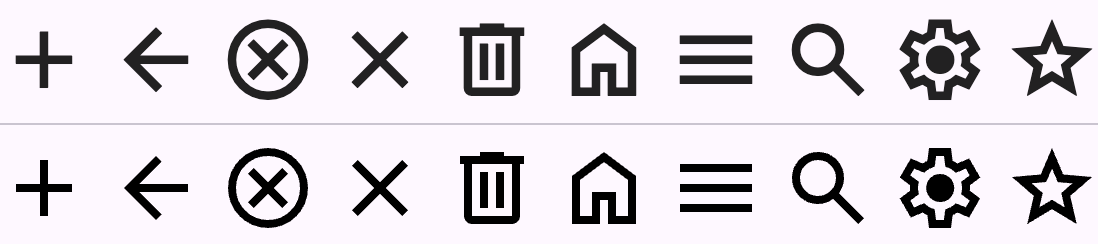
Icons included with Flutter (through Icons and CupertinoIcons) also have this "feature". This is not a bad thing in itself. Some icons tend to look better with antialiasing. Therefore, if this isn't a major concern for you, icon fonts are an excellent choice.
Generating Icon Fonts
Icon fonts are generated by transforming one or more SVG files into glyphs. Various tools are available to accomplish this task. For instance, Icomoon is a widely used tool that can create an icon font from your SVG collection. Additionally, it provides a Dart file that associates each icon with its corresponding code point.

I personally find CLIs more convenient to use. In Dart, the icon_font_generator package simplifies the process. It accepts a folder containing SVG files and generates a font file along with a Dart file. Here's a step by step tutorial:
dart pub add icon_font_generator --dev- Create a folder for your icons and place all your SVG files inside it.
dart run icon_font_generator:generator icons assets/iconfont/AppIcons.otf --font-name AppIcons --class-name AppIcons -r -v --no-normalize -o lib/icons/app_icons.dart --no-ignore-shapes- Add generated font into assets and use generated
AppIconsclass.
An AppIcons class should be generated, containing each icon as a static const variable. This approach is quite similar to the Icons and CupertinoIcons classes provided by Flutter:
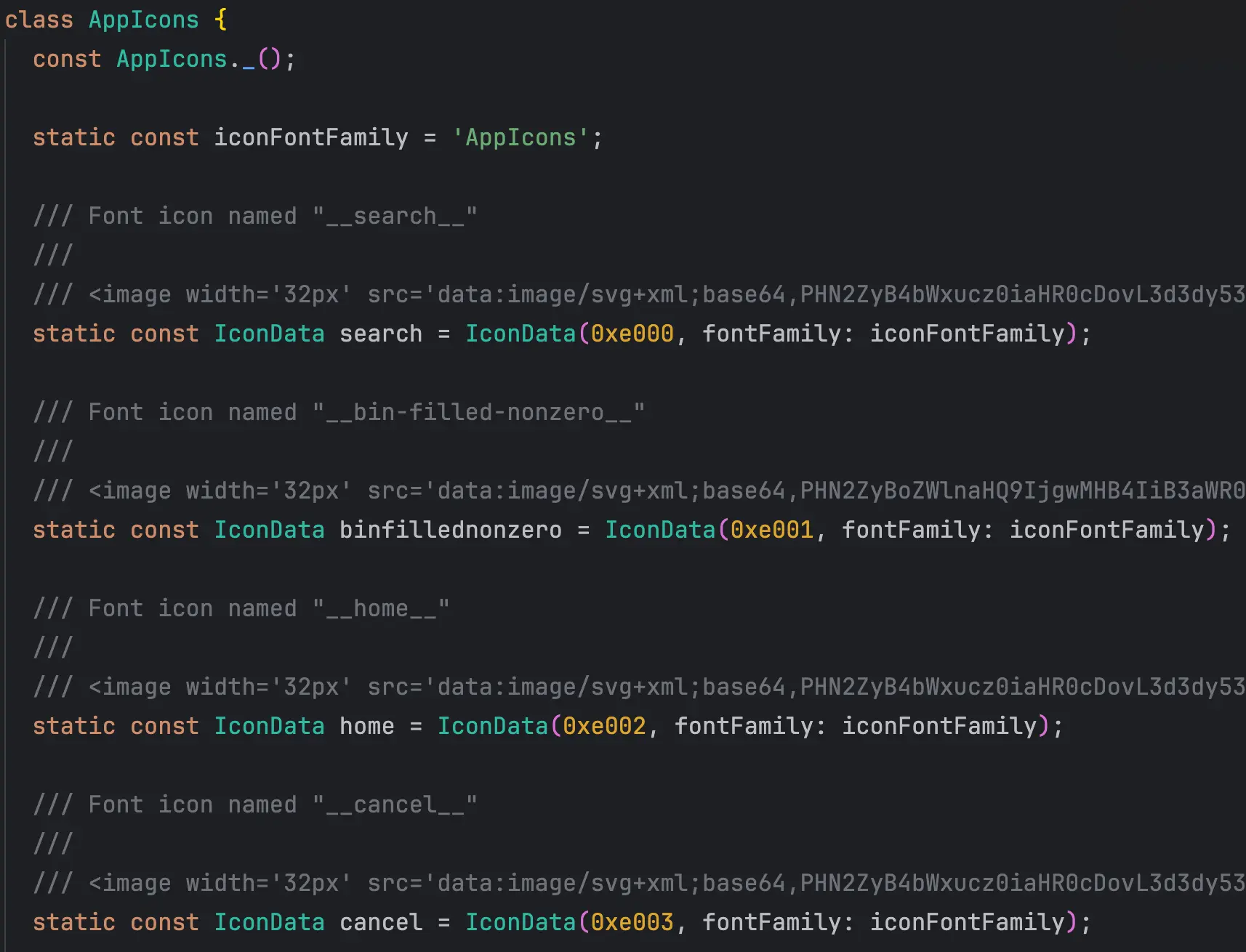
These icons can now be rendered using the Icon widget:
Icon(
  AppIcons.search,
  size: 24,
  color: Colors.black,
  semanticLabel: 'Search',
)
Rendering SVGs with Flutter SVG
Using the flutter_svg package to render SVGs directly is one of the most popular methods. This approach involves adding icons as assets and displaying them with the SvgPicture widget:
SvgPicture.asset(
  'assets/icons/search.svg',
  width: 24,
  height: 24,
  semanticsLabel: semanticsLabel,
)
This approach has a few great benefits – it is easy, fully supports SVG features and rendered icons are sharp (see the pic 1.0).
Of course, it has its downsides too. Rendering an SVG requires more resources compared to using an icon font. Here's what happens internally to render an icon on the screen:
- The SVG is loaded asynchronously from the
AssetBundle(e.g., assets) - SVG bytes are encoded into a binary vector graphics format using
vector_graphics_compiler(most resource-intensive) - The binary format is parsed into structures that the renderer can interpret
- Finally, the renderer processes and displays the vector graphic
A slight delay might occur before the icon appears on the screen, typically around 50-100 millisecond or less on high-performance devices. Furthermore, performing binary format parsing (step 3) on the main thread can lead to stutters if total computations take longer than 8–16 milliseconds within a single frame.
Important notes: Steps 1 and 2 are executed only once when the icon is used for the first time. Step 3 is performed each time the icon appears, but its result is cached for reuse between frames. However, after the icon is disposed, step 3 must be recomputed the next time the icon is displayed.
Compiling SVGs to vector graphics
One great advantage for those who prefer flutter_svg is that there's an ability to manually compile SVGs before runtime, eliminating the need for Step 2, which is the most resource-intensive process.
Under the hood, flutter_svg uses vector_graphics_compiler to convert SVG files into .vec assets. Here's how you can manually perform this process using the CLI:
- Organize your SVG files into a folder (e.g.,
icons). - Add
vector_graphics_compileras a dev dependency andvector_graphicsas a regular dependency in your project. - Include
assets/vec/in yourpubspec.yamlunder theassetssection.
Run the following command in your terminal:
dart run vector_graphics_compiler --input-dir assets/icons --out-dir assets/vec/
Now, you're all set to use these compiled assets just as you would with flutter_svg:
VectorGraphic(
  loader: CachingAssetBytesLoader('assets/vec/search.vec'),
  width: 24,
  height: 24,
  semanticsLabel: 'Search',
)
Showing icon with Vector Graphic widget
To improve the vector graphics approach, consider using CachingAssetBytesLoader. By default, bytes loaded from AssetBundle are not cached, meaning each time an icon is used elsewhere, it has to be fetched asynchronously. To address this, I created a solution similar to what’s already implemented in flutter_svg:
class CachingAssetBytesLoader extends AssetBytesLoader {
  const CachingAssetBytesLoader(
    super.assetName, {
    super.packageName,
    super.assetBundle,
  });

  static final Map<String, Future<ByteData>> _pendingCache = {};
  static final Map<String, ByteData> _cache = {};

  @override
  Future<ByteData> loadBytes(BuildContext? context) {
    final key = packageName == null ? assetName : 'packages/$packageName/$assetName';

    if (_cache.containsKey(key)) {
      return SynchronousFuture(_cache[key]!);
    }

    if (_pendingCache.containsKey(key)) {
      return _pendingCache[key]!;
    }

    final future = super.loadBytes(context);

    _pendingCache[key] = future;

    return future.then((data) {
      _cache[key] = data;

      return data;
    }).whenComplete(() {
      _pendingCache.remove(key);
    });
  }
}
Caching Assets Loader for VectorGraphic
Precaching vector assets is a smart move to improve performance. Here's how you can do it:
  for (final icon in Vectors.values) {
    await CachingAssetBytesLoader(icon).loadBytes(null);
  }
This ensures your asset is ready before rendering.
Generating asset paths with spider
Working with assets can sometimes lead to small errors—like typos or accidentally adding extra characters. Plus, repeatedly writing paths like 'assets/bla/bla/bla' can get tedious, especially when dealing with recurring icons.
Enter the Spider generator! It simplifies the process. Here's how to get started:
- Create a configuration file to set things up:
# Generated by Spider
# For more info on configuration, visit https://birjuvachhani.github.io/spider/grouping/
# Generates unit tests to verify that the assets exists in assets directory
generate_tests: true

# Use this to remove vcs noise created by the `generated` comments in dart code
no_comments: true

# Exports all the generated file as the one library
export: true

# This allows you to import all the generated references with 1 single import!
use_part_of: true

# Generates a variable that contains a list of all asset values.
use_references_list: true

# Location where all the generated references will be stored
package: src/constant/resources

groups:
  - path: assets/vec
    class_name: Vectors
    types: [ .vec ]
  - path: assets/icons
    class_name: SvgIcons
types: [ .svg ]- Add Spider as a dev dependency:
dart pub add spider --dev- Now you can generate the asset paths by running:
dart run spider build
This command creates a file with all the asset paths, making it easier to reference them in your code without manually typing them out. For example, you'll get something like:
class Vectors {
  static const String add = 'assets/vec/add.vec';
  static const String home = 'assets/vec/home.vec';
  /// ...
}
Now, you can access assets like this:
VectorGraphic(
  loader: CachingAssetBytesLoader(Vectors.add),
  width: 24,
  height: 24,
  semanticsLabel: 'Add',
)
This saves time and reduces the chances of mistakes to zero!
Summary
Both approaches are valid, however we're ultimately comparing only two – using icon font and using vector graphics (because flutter_svg uses vector graphics under the hood, but add additional resource-intensive step to encode the SVG).
| Approach | Pros | Cons |
|---|---|---|
| Icon Fonts | Performance, Lightweight | Limited support for SVG features May be less sharp Needs setup |
| flutter_svg | Easy to set up, Supports SVG features | Resource-intensive |
| Vector Graphics | Supports SVG features | Needs setup |
In my opinion, choosing the right tool depends on your use case. If you need something simple and don’t require complex or multicolor icons, icon fonts are the best choice—they’re lightweight and highly performant.
If you need to download assets over the network, flutter_svg is a good option. Otherwise, consider using vector_graphics.
Don't forget to use tools like Spider or other generators—they simplify the process tremendously! Here you can find the repository with all techniques in place:
 hawkkiller