UI Components, Adaptive and Responsive Design

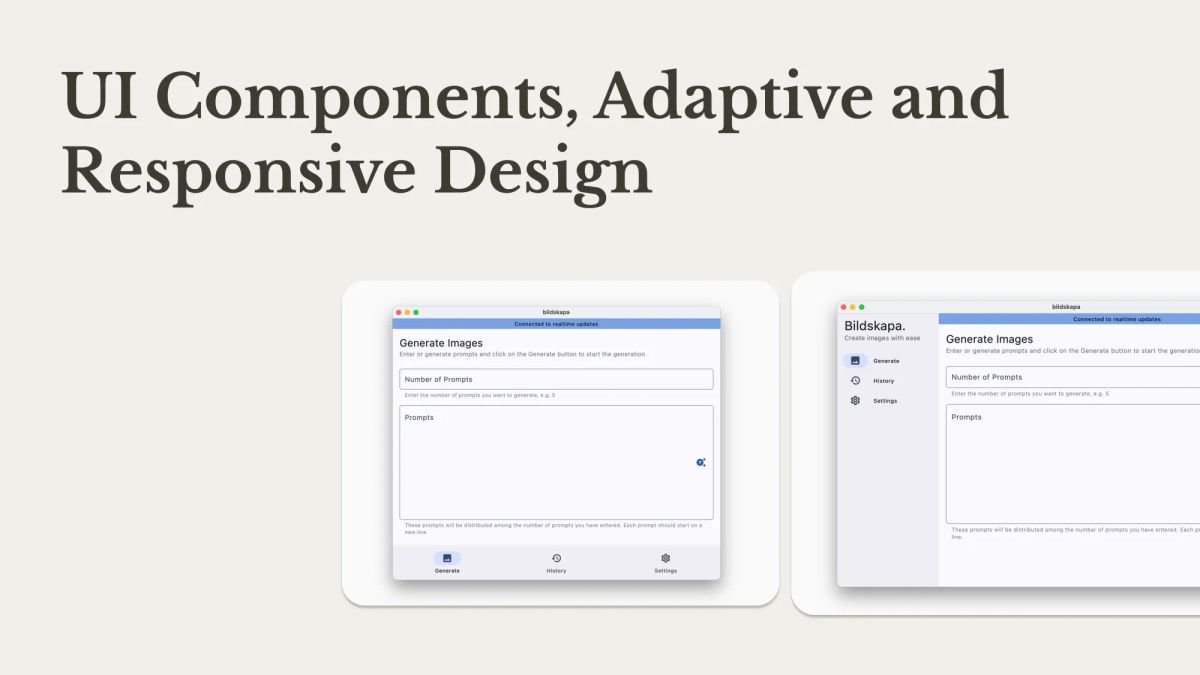
This is the continuation of a series of articles Crafting Perfect UI Kit, where we talk about implementing a UI kit for the Flutter application. So far we've talked about theme (colors, typography) and created a few components - text field and buttons.
In this part, we will create more components such as text, cards and other button types. In addition, we will talk about adaptive and responsive design, and how to implement them correctly.
Outline
Components
Components in the context of UI in Flutter are reusable widgets. Examples of components are: text fields, buttons, texts, progress bars, tiles, etc. In general, it is recommended to create a component when a widget is used in more than one place. Creating custom components reduces code repetition and makes the widget code more robust. Additionally, it is much better for maintainability as you can apply the changes centrally.
Text
Flutter comes with a text widget that renders the necessary glyphs from the font on the screen. It has a number of different useful parameters, but in this section we will focus on style, since our general experience with the Text widget is rendering simple text with specific styles.
Problem 1: Once you have set the theme, you need to get the style for each text, for example - Theme.of(context).appTypography.bodyLarge. Additionally, you may need to change the color, so it is necessary to get it as well and then use copyWith to override the color in the style.
Problem 2: You may want additional functionality from the text widget. For example, your text widget may provide parsing and rendering of markdown, or other styling options.
To address these issues, we can create a wrapper around the Text widget. It will provide a separate constructor for each text style. This is what it looks like:
/// {@template ui_text}
/// A widget that displays a string of text with a specific style.
/// {@endtemplate}
class UiText extends StatelessWidget {
  /// {@macro ui_text}
  const UiText(
    this.data, {
    this.color,
    this.style,
    this.textAlign,
    this.overflow,
    this.maxLines,
    TextStyle? Function(AppTypography)? styleBuilder,
    super.key,
  }) : _styleBuilder = styleBuilder;

  /// Creates a [UiText] widget with a large display size.
  factory UiText.displayLarge(
    String data, {
    Color? color,
    TextStyle? style,
    TextAlign? textAlign,
    TextOverflow? overflow,
    int? maxLines,
    Key? key,
  }) =>
      UiText(
        data,
        color: color,
        style: style,
        textAlign: textAlign,
        overflow: overflow,
        maxLines: maxLines,
        styleBuilder: (typography) => typography.displayLarge,
        key: key,
      );

  /// Creates a [UiText] widget with a medium display size.
  factory UiText.displayMedium(
    String data, {
    Color? color,
    TextStyle? style,
    TextAlign? textAlign,
    TextOverflow? overflow,
    int? maxLines,
    Key? key,
  }) =>
      UiText(
        data,
        color: color,
        style: style,
        textAlign: textAlign,
        overflow: overflow,
        maxLines: maxLines,
        styleBuilder: (typography) => typography.displayMedium,
        key: key,
      );

  ... (Continued)

  /// The text to display.
  final String data;

  /// The style to apply to the text.
  final TextStyle? style;

  /// The alignment of the text.
  final TextAlign? textAlign;

  /// The overflow behavior of the text.
  final TextOverflow? overflow;

  /// The maximum number of lines to display.
  final int? maxLines;

  /// The color of the text.
  final Color? color;

  /// A function that builds the text style based on the typography.
  final TextStyle? Function(AppTypography)? _styleBuilder;

  @override
  Widget build(BuildContext context) {
    final typography = Theme.of(context).appTypography;
    final palette = Theme.of(context).colorPalette;

    // Get the text style based on the size
    final style = _styleBuilder?.call(typography) ?? typography.bodyLarge;

    return Text(
      data,
      textAlign: textAlign,
      overflow: overflow,
      maxLines: maxLines,
      style: style.copyWith(color: color ?? palette.foreground),
    );
  }
}
As you can see, there is a style constructor function that is used to determine the text style. Each constructor chooses the right style for itself in the initializer. Then the widget in its body gets a typography instance and a palette. Then a style is created and passed to the text widget. This is how it can be used:
// BEFORE:
Text(
  'Title Large',
  style: Theme.of(context).appTypography.titleLarge.copyWith(color: Colors.black),
);
Text(
  'Title Medium',
  style: Theme.of(context).appTypography.titleMedium.copyWith(color: Colors.black),
);

// AFTER:
UiText.titleLarge('Title Large', color: Colors.black);
UiText.titleMedium('Title Medium', color: Colors.black);
Surface and Card
Some of the most useful widgets for me when creating layouts are definitely Card and Material from Material Package. To maintain consistency in designs, it is a good idea to create wrappers for them as well:
/// {@template surface}
/// A widget that displays a surface with project style.
///
/// Uses [Material] under the hood.
/// {@endtemplate}
class Surface extends StatelessWidget {
  /// {@macro surface}
  const Surface({
    required this.child,
    this.color,
    this.elevation = 0,
    this.shape,
    super.key,
  });

  /// The elevation of the surface.
  final double elevation;

  /// The color to paint the surface.
  final Color? color;

  /// The widget below this widget in the tree.
  final ShapeBorder? shape;

  /// The widget below this widget in the tree.
  final Widget child;

  @override
  Widget build(BuildContext context) {
    final color = this.color ?? Theme.of(context).colorPalette.background;

    return Material(
      elevation: elevation,
      color: color,
      shape: shape,
      shadowColor: Theme.of(context).colorPalette.foreground.withOpacity(.24),
      surfaceTintColor: color,
      child: child,
    );
  }
}
The Surface defines a canvas for painting and provides functionality for rendering ink features (such as splash factories). In this class we use Material, which we pass a color and shadowColor that matches our design. Additionally, we disable the surfaceTintColor feature by passing the same color.
This is how the Card looks like:
/// {@template ui_card}
/// A widget that displays a card with project style.
/// {@endtemplate}
class UiCard extends StatelessWidget {
  /// {@macro ui_card}
  const UiCard({
    required this.child,
    super.key,
    this.color,
    this.margin,
  });

  /// The color to paint the card.
  ///
  /// If null, defaults to [ColorPalette.background]
  final Color? color;

  /// The empty space that surrounds the card.
  ///
  /// Defines the card's outer [Padding].
  ///
  /// If this property is null then 4.0 logical pixels of padding is added to
  /// all sides.
  ///
  /// This is useful for cases when the card is used in limited space and
  /// its shadow may be clipped.
  final EdgeInsetsGeometry? margin;

  /// The widget below this widget in the tree.
  final Widget child;

  @override
  Widget build(BuildContext context) => Padding(
        padding: margin ?? const EdgeInsets.all(4),
        child: Surface(
          color: color,
          elevation: 3,
          shape: RoundedRectangleBorder(
            borderRadius: BorderRadius.circular(12),
          ),
          child: child,
        ),
      );
}
Under the hood, Card uses the Surface widget with a margin and rounded corners. However, you can put whatever you want into it to make your design work. For example, if cards in figma can have borders, you can create different variations and use them accordingly.
Other Buttons
Let's create more buttons! I have prepared the code for radio and checkboxes:
/// {@template radio}
/// A radio button widget with project style.
/// {@endtemplate}
class UiRadio<T> extends StatelessWidget {
  /// {@macro radio}
  const UiRadio({
    required this.value,
    required this.groupValue,
    this.onChanged,
    super.key,
  });

  /// The value of the radio button.
  final T value;

  /// The currently selected value for a group of radio buttons.
  final T groupValue;

  /// Called when the value of the radio button should change.
  final ValueChanged<T?>? onChanged;

  @override
  Widget build(BuildContext context) {
    final activeColor = Theme.of(context).colorPalette.primary;
    final inactiveColor = Theme.of(context).colorPalette.foreground.withOpacity(0.38);
    final fillColor = WidgetStateProperty.resolveWith<Color?>(
      (Set<WidgetState> states) {
        if (states.contains(WidgetState.disabled)) {
          return inactiveColor;
        }
        if (states.contains(WidgetState.selected)) {
          return activeColor;
        }
        return null;
      },
    );

    return Radio<T>(
      value: value,
      groupValue: groupValue,
      onChanged: onChanged,
      activeColor: activeColor,
      fillColor: fillColor,
    );
  }
}
Radio Button Implementation
The radio button implementation uses the Radio widget from the Material and overrides active and inactive colors. Here is a checkbox implementation, which is slightly more complex:
/// {@template checkbox}
/// A material design checkbox.
/// {@endtemplate}
class UiCheckbox extends StatelessWidget {
  /// {@macro checkbox}
  const UiCheckbox({
    required this.value,
    required this.onChanged,
    this.tristate = false,
    super.key,
  });

  /// The value of the checkbox.
  final bool? value;

  /// Whether this checkbox is in a tristate state.
  final bool tristate;

  /// Called when the value of the checkbox should change.
  final ValueChanged<bool?>? onChanged;

  @override
  Widget build(BuildContext context) {
    final selectedColor = Theme.of(context).colorPalette.primary;
    final checkColor = Theme.of(context).colorPalette.primaryForeground;
    final overlayColor = WidgetStateProperty.resolveWith<Color?>(
      (Set<WidgetState> states) {
        if (states.contains(WidgetState.hovered)) {
          return selectedColor.withOpacity(0.04);
        }

        return null;
      },
    );

    final fillColor = WidgetStateProperty.resolveWith<Color?>(
      (Set<WidgetState> states) {
        if (states.contains(WidgetState.disabled)) {
          return Theme.of(context).colorPalette.primary.withOpacity(0.38);
        }

        if (states.contains(WidgetState.selected)) {
          return selectedColor;
        }

        return Theme.of(context).colorPalette.background;
      },
    );

    return Checkbox(
      value: value,
      onChanged: onChanged,
      tristate: tristate,
      activeColor: selectedColor,
      checkColor: checkColor,
      fillColor: fillColor,
      focusColor: selectedColor.withOpacity(0.12),
      hoverColor: selectedColor.withOpacity(0.08),
      overlayColor: overlayColor,
      shape: RoundedRectangleBorder(
        borderRadius: BorderRadius.circular(4),
      ),
    );
  }
}
Checkbox Implementation
For the checkbox, it's necessary to override more fields because they are more sophisticated inputs. The code snippet changes the fillColor, checkColor and other colors to match the design.
Adaptive and Responsive Design
One of the most common challenges in layout design is supporting different screen sizes. For Flutter applications, this is even more important since we are targeting all available platforms.
In this section, we’ll talk about the differences between adaptive and responsive design, how to organize breakpoints, and how to get them correctly (SPOILER: we will create a beautiful scope).
Adaptive vs Responsive Design
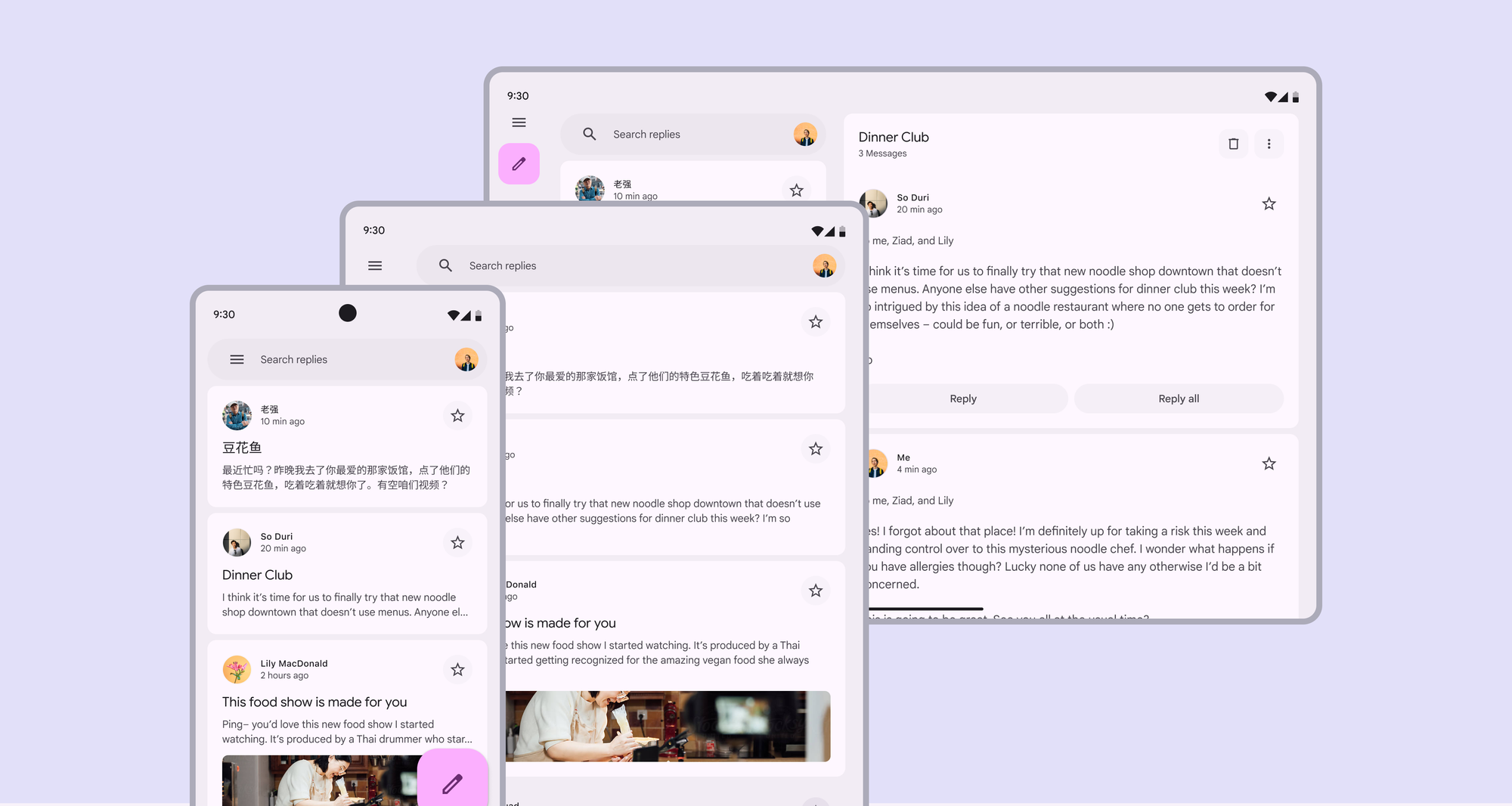
There are two strategies for dealing with different screen sizes. Simply put, responsiveness is the ability of a UI to fit into a given viewport, while adaptivity is how the UI components are organized in the given viewport.
An example of responsiveness is showing different number of columns in the GridView. For adaptivity, the simplest example is deciding whether to display a bottom navigation bar or a side panel.
These two terms are often used together, and when we talk about "adaptive" or "responsive" design, we usually mean both.
Defining Breakpoints
To understand which layout to display, we need to understand the breakpoint. Each screen size falls into one of the breakpoints defined in your design. For example, the Material guidelines provide 5 - compact, medium, expanded, large, and extra-large.
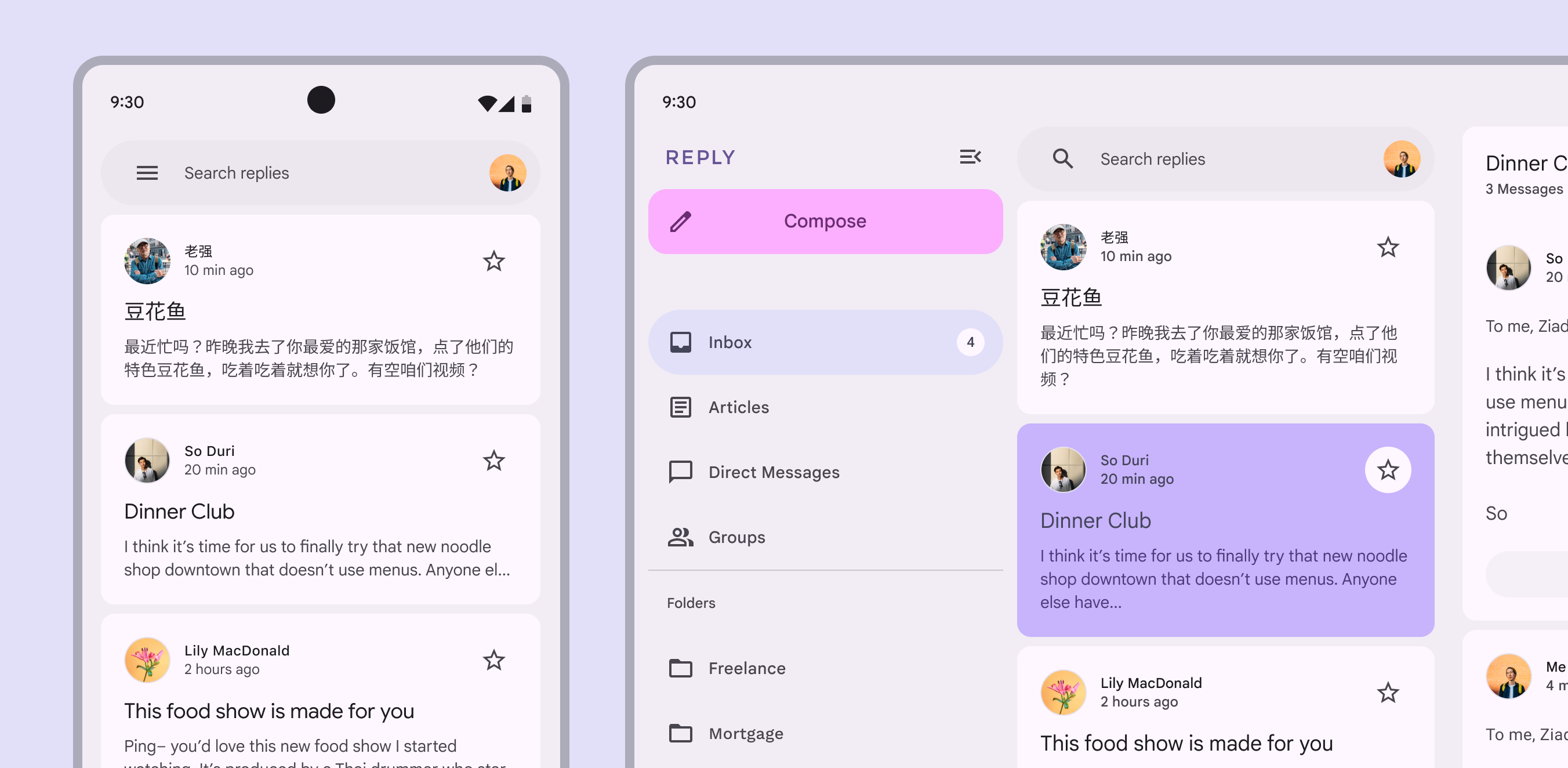
Let's define the material breakpoints. To do this, we will create a sealed class that extends Size:
sealed class WindowSize extends Size {
  /// {@macro window_size}
  WindowSize({
    required this.minWidth,
    required this.maxWidth,
    required Size size,
  }) : super.copy(size);

  /// Creates a [WindowSize] from the given [Size].
  factory WindowSize.fromSize(Size size) {
    assert(size.width >= 0, 'Width must be greater than or equal to 0');

    return switch (size.width) {
      >= WindowSizeCompact._minWidth && < WindowSizeMedium._minWidth => WindowSizeCompact(size),
      >= WindowSizeMedium._minWidth && < WindowSizeExpanded._minWidth => WindowSizeMedium(size),
      >= WindowSizeExpanded._minWidth && < WindowSizeLarge._minWidth => WindowSizeExpanded(size),
      >= WindowSizeLarge._minWidth && < WindowSizeExtraLarge._minWidth => WindowSizeLarge(size),
      >= WindowSizeExtraLarge._minWidth => WindowSizeExtraLarge(size),
      _ => throw AssertionError('Invalid window size: $size'),
    };
  }

  /// Minimum width of the window for the breakpoint.
  final double minWidth;

  /// Maximum width of the window for the breakpoint.
  final double maxWidth;
}

/// Compact breakpoint for responsive design.
final class WindowSizeCompact extends WindowSize {
  /// Creates a [WindowSizeCompact] breakpoint.
  WindowSizeCompact(Size size) : super(minWidth: _minWidth, maxWidth: _maxWidth, size: size);

  /// The minimum width of the window for the compact breakpoint.
  static const _minWidth = 0.0;

  /// The maximum width of the window for the compact breakpoint.
  static const _maxWidth = 599.0;
}

// ... same way for each breakpoint
I use the sealed class here because the number of subclasses is limited and each subclass must be placed in the same file. One notable thing about WindowSize is that it extends the Size class from the SDK. This is done to have access to the actual viewport dimensions (width and height) while also knowing the actual breakpoint. See the full code here.
Determining the Breakpoint
Now, in order to have access to the breakpoint, we can create a scope for it, that will notify the dependencies every time the breakpoint changes:
/// Scope that provides [WindowSize] to its descendants.
class WindowSizeScope extends StatefulWidget {
  /// Creates a [WindowSizeScope] that provides [WindowSize] to its descendants.
  const WindowSizeScope({required this.child, super.key});

  /// The widget below this widget in the tree.
  final Widget child;

  /// Returns the [WindowSize] of the nearest [WindowSizeScope] ancestor.
  static WindowSize of(BuildContext context, {bool listen = true}) =>
      context.inhOf<_InheritedWindowSize>(listen: listen).windowSize;

  @override
  State<WindowSizeScope> createState() => _WindowSizeScopeState();
}

class _WindowSizeScopeState extends State<WindowSizeScope> with WidgetsBindingObserver {
  late WindowSize _windowSize;

  WindowSize _getWindowSize() {
    final view = PlatformDispatcher.instance.views.first;
    return WindowSize.fromSize(view.physicalSize / view.devicePixelRatio);
  }

  @override
  void initState() {
    super.initState();

    _windowSize = _getWindowSize();
    WidgetsBinding.instance.addObserver(this);
  }

  @override
  void didChangeMetrics() {
    final windowSize = _getWindowSize();

    if (_windowSize != windowSize) {
      setState(() => _windowSize = windowSize);
    }
    super.didChangeMetrics();
  }

  @override
  void dispose() {
    WidgetsBinding.instance.removeObserver(this);
    super.dispose();
  }

  @override
  Widget build(BuildContext context) => _InheritedWindowSize(
        windowSize: _windowSize,
        child: widget.child,
      );
}

class _InheritedWindowSize extends InheritedWidget {
  const _InheritedWindowSize({
    required this.windowSize,
    required super.child,
  });

  /// The [WindowSize] provided by this scope.
  final WindowSize windowSize;

  @override
  bool updateShouldNotify(_InheritedWindowSize oldWidget) => windowSize != oldWidget.windowSize;
}
This scope internally sets up an observer that's called every time the screen size changes. Then it gets a window size (the breakpoint) from it, and if it has changed, it updates the state and notifies about the change. See how it's used:
if (WindowSizeScope.of(context).isExpandedOrLarger) {
      return Row(
        children: [
          NavigationRail(
            selectedIndex: _selectedIndex,
            onDestinationSelected: _onDestinationSelected,
            destinations: [
              ...
            ],
          ),
          Expanded(child: child),
        ],
      );
    }

    return Column(
      children: [
        Expanded(child: child),
        NavigationBar(
          selectedIndex: _selectedIndex,
          onDestinationSelected: _onDestinationSelected,
          destinations: [
            ...
          ],
        ),
      ],
    );
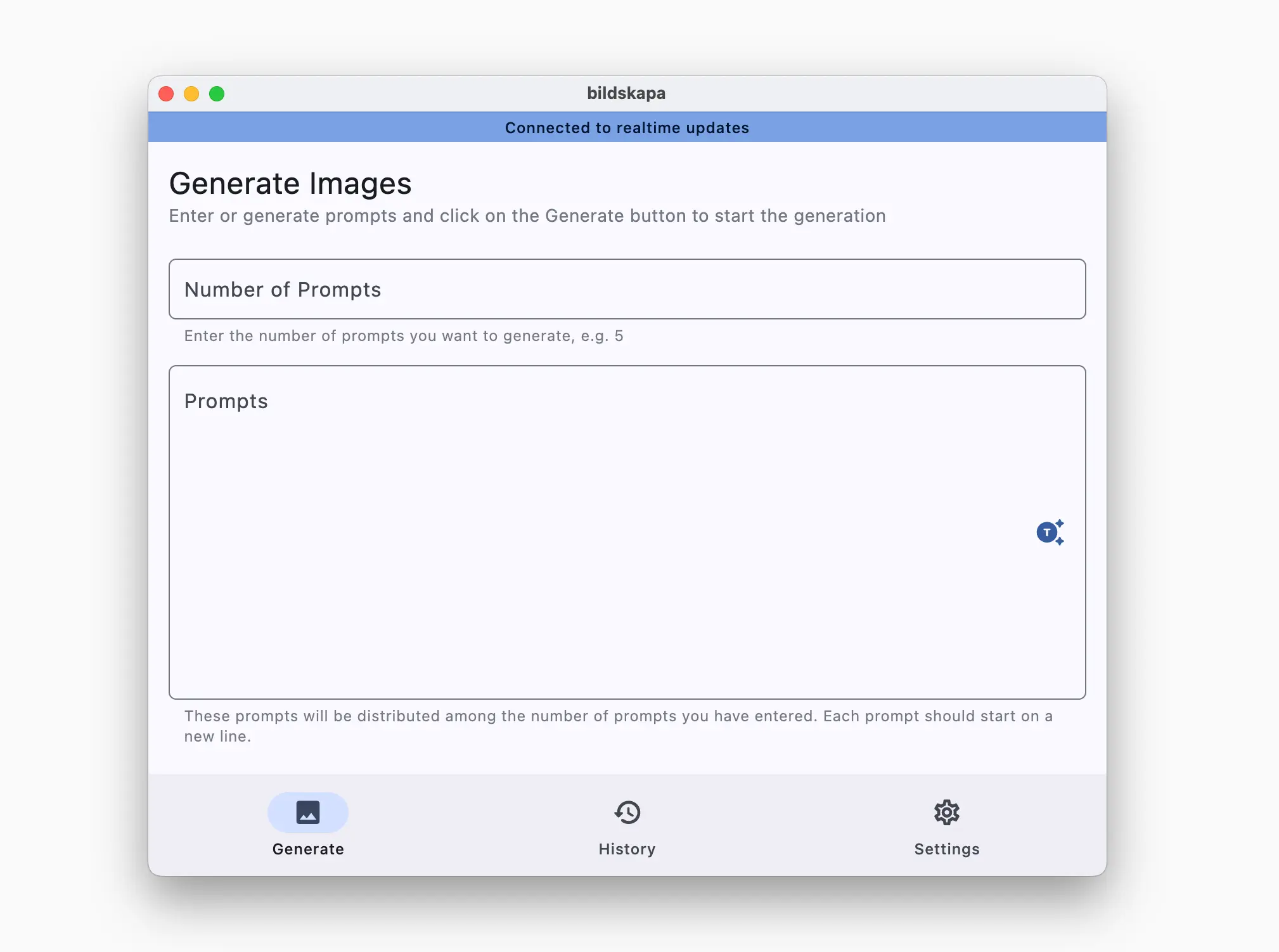
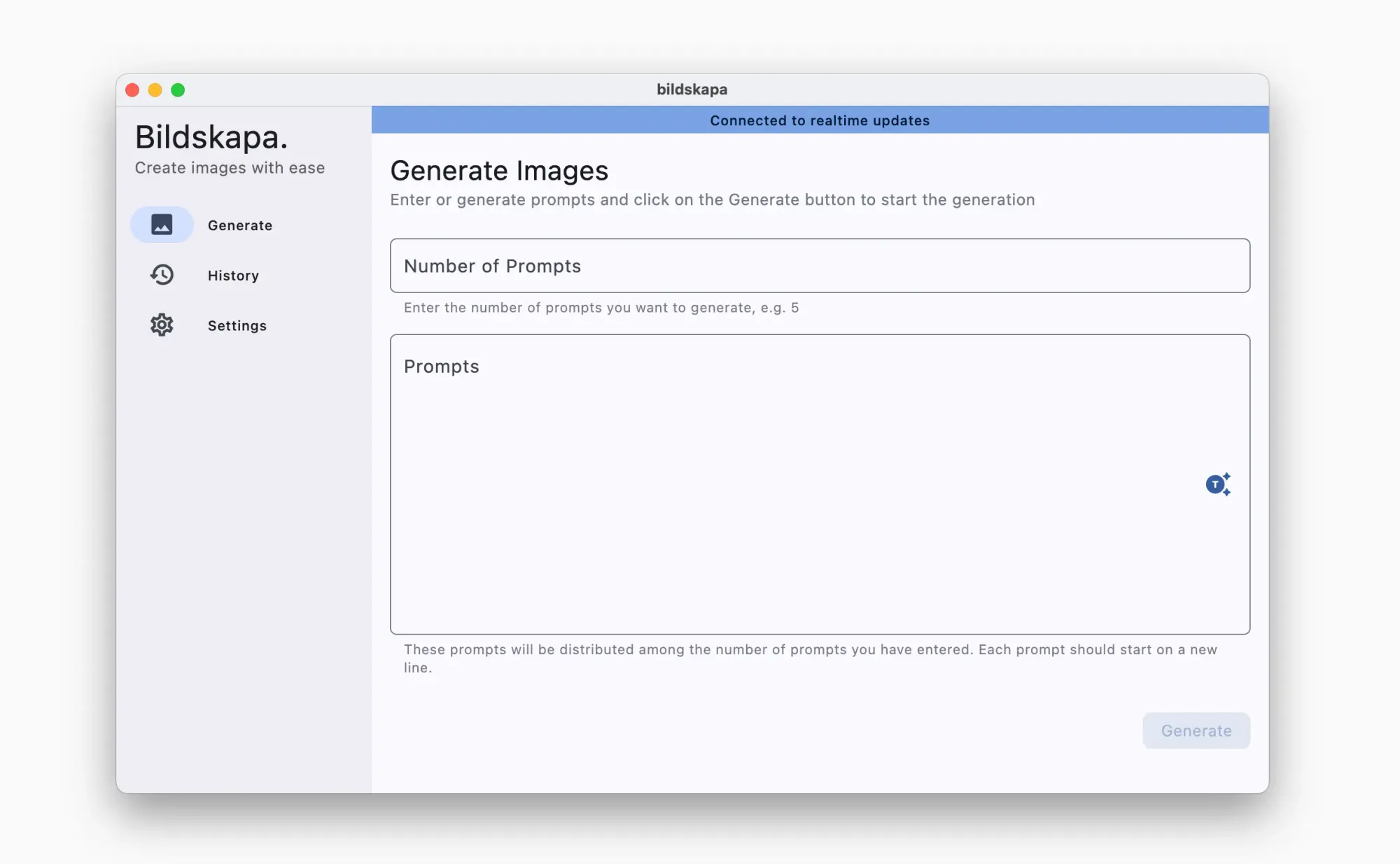
Using WindowSizeScope to show the NavigationRail in expanded or larger breakpoints or bottom NavigationBar otherwise.
In the snippet above, I used WindowSizeScope to get the breakpoint and determine which layout to use (i.e., whether to use the navigation panel or the navigation bar). This is what it looks like in real life:
Helpful Widgets
In the previous section, we used the size of the entire viewport to determine the layout. This approach is typically used in top-level widgets (aka screens) to make decisions about their visual appearance. In smaller widgets, however, it's unusual to see the breakpoint logic.
If you want the sizing to be based on the space specifically given to that widget, and not the app window in general, use LayoutBuilder. Rather than providing the size of the app's window, LayoutBuilder provides the layout constraints from the parent Widget. This means that you get sizing information based on the specific spot in the widget tree where you added the LayoutBuilder:
LayoutBuilder(
  builder: (context, constraints) => Row(
      children: [
        const Icon(Icons.ac_unit),
        if (constraints.maxWidth > 24) const Text('Hello'),
        if (constraints.maxWidth > 52) const Text('World'),
      ],
    ),
)
If you need a widget to fit into the constraints in a specific way, e.g. conform to BoxFit to fit the available width, cover or fill the parent widget, you can use FittedBox:
Container(
  color: Colors.blueAccent,
  width: 300,
  height: 200,
  child: const FittedBox(
    fit: BoxFit.contain, // Controls how the child is fitted.
    alignment: Alignment.center, // Controls the alignment of the child.
    child: Text(
      'Flutter FittedBox',
      style: TextStyle(fontSize: 30, color: Colors.white),
    ),
  ),
)
If you need your widget to be sized according to a specific aspect ratio (very useful for photos, videos and any byte data), you can use AspectRatio:
AspectRatio(
  aspectRatio: 16 / 9,
  child: Image.network(
    'urltoimage',
    fit: BoxFit.fill, // You can override filling
  ),
)
Final Notes
Hope this article gave some interesting ideas about organizing your own UI components and a solid foundation for building responsive and adaptive layouts. In addition, I recommend reading this article by the Flutter team about adaptive and responsive design:


<EOT>